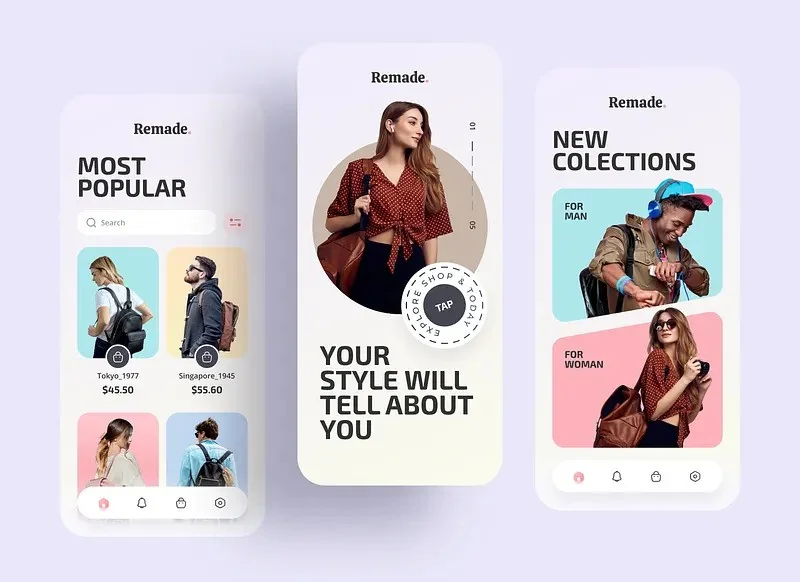
We have designed and shipped interfaces for FinTech apps, health platforms, real estate tools, AI products, and enterprise dashboards. Some performed beautifully from day one. Others needed significant redesigns after launch because conversion and retention were lower than expected. The gap between the two was rarely the technology — it was almost always the design. These are the five principles that now drive every interface decision we make.
Why UI Design Directly Impacts Revenue
Design is often treated as the last step in a product build — the coat of paint after the engineering is done. This is a mistake that costs clients real money. We've seen identical products with different UIs produce dramatically different outcomes:
- A simplified onboarding flow increased sign-up completion from 34% to 71% for a FinTech client — same product, same features, completely different screen sequence and visual hierarchy.
- Reducing form fields from 9 to 4 on a contact page doubled lead submission rate without changing a single word of copy.
- Adding micro-animations to loading states reduced perceived wait time complaints by 60% in user testing, even though the actual load time didn't change.
- Changing a button from grey to high-contrast orange increased tap rate by 38% in an A/B test on a mobile app's primary CTA.
Design is not decoration. It is the primary interface between your product and the outcome you want users to take. Every pixel either moves them toward that outcome or creates friction against it.
Principle 1 — Hierarchy Before Aesthetics
The most common design mistake we see in products that underperform is beautiful screens with unclear hierarchy. When a user lands on a screen, their eye needs an unambiguous answer to one question: what is the most important thing here?
Visual hierarchy is established through size, weight, contrast, spacing, and position. When everything on a screen is styled with equal emphasis, nothing stands out — and users don't know what to do next. Decision paralysis leads to abandonment.
How we apply this in practice:
- One primary action per screen — Every screen has a single dominant CTA. Secondary actions are visually subordinate — smaller, less saturated, further from the centre of attention. If a screen has two equally prominent buttons, it has no clear direction.
- Size communicates importance — The most important text on a screen is the largest. We never use large decorative text that isn't the main message, because the user's eye will read it first and feel misled when it turns out to be secondary content.
- Whitespace is not wasted space — Dense interfaces feel overwhelming and signal low trust, especially in financial and health products. Strategic whitespace around key elements increases focus on those elements. We consistently increase whitespace in redesigns and consistently see engagement go up.
- Colour draws the eye — We use colour sparingly and purposefully. One accent colour. Applied to the thing you want the user to look at or tap. Every additional use of that colour dilutes its power as a directional signal.
Principle 2 — Reduce Friction at Every Step
Friction is any point in a user flow where the user has to slow down, think harder, or do more work than necessary. Every point of friction is a place where users leave. Our job as designers is to find and eliminate friction — and it exists in more places than most teams realise.
- Form friction — Every field in a form is a reason to abandon. We audit every form for fields that are asked out of habit rather than necessity. If the data isn't used in the product, the field doesn't belong in the form. We also default to the right keyboard type (numeric, email, phone) so users never have to switch manually.
- Navigation friction — If a user has to tap more than three times to reach a core feature, the navigation needs redesigning. We map the three most-used features in any app and make sure they're reachable in one or two taps from the home screen.
- Cognitive friction — Jargon, ambiguous labels, and instructions written in technical language all slow users down. We write every label and instruction at a reading level that requires zero expertise to understand. In FinTech and health apps, where technical language is common, this is often the highest-impact change we make.
- Error friction — Error messages that say "Error code 4021" tell the user nothing. Error messages that say "Your card was declined — please check the card number and try again" tell the user exactly what to do. We write every error state as a specific, actionable instruction, not a system message.
- Loading friction — Users tolerate waiting if they feel progress is happening. A static loading spinner signals stalling. A progress indicator, skeleton screen, or animated state signals activity. We never show a blank screen while content loads — there is always a meaningful loading state.
Principle 3 — Design for Trust First
Trust is the most underrated factor in conversion rates — especially for financial, health, and marketplace products. Users are constantly making micro-decisions about whether to trust your product with their data, their money, and their time. UI design directly influences those decisions.
The design signals that build trust:
- Consistency — Fonts, colours, spacing, and component styles that are consistent across every screen signal that the product was built with care and intention. Inconsistent design signals a product that was rushed or poorly maintained.
- Professional photography and iconography — Stock photos that look generic actively hurt trust. Custom illustrations, real team photos, and high-quality icons communicate that there are real people behind the product who invested in its presentation.
- Transparent microcopy — Users trust products that explain what they're doing. "We'll never share your email" next to an email field. "Your data is encrypted in transit" near a payment form. These aren't legal disclaimers — they're trust signals written for humans.
- Social proof at decision points — Reviews, ratings, testimonials, and usage numbers placed immediately before conversion actions (sign-up, purchase, subscription) reduce the uncertainty that causes hesitation. We always audit where social proof currently lives in a product versus where users are actually making decisions.
- Responsive feedback — When a user taps a button, something should visually respond immediately. A button that appears not to have registered a tap gets tapped again, causing duplicate actions. Instant visual feedback — a colour change, a ripple, a state change — confirms the action was received.
Principle 4 — Mobile-First Is Not Optional
Over 70% of the users on the products we've shipped access them primarily on mobile. Designing for desktop and then adapting to mobile is designing for the minority first. We design every product mobile-first — not as a constraint, but as a discipline that produces better products on all screen sizes.
What mobile-first design actually means in practice:
- Tap targets of at least 44×44px — Apple's HIG and Google's Material Design guidelines agree on this. Smaller targets cause missed taps, especially for users on smaller phones or with larger fingers. We audit tap targets on every mobile design before handoff.
- Thumb-zone design — The natural resting position of a thumb on a phone covers the bottom third of the screen. Primary actions live in this zone. Secondary actions and destructive actions (delete, cancel) live in areas that require deliberate reach.
- Single-column layouts for critical flows — Multi-column layouts on mobile force users to shift their attention laterally. For onboarding, checkout, and core workflows, single-column layouts with clear vertical progression outperform grid layouts consistently.
- Reduce text entry to the minimum viable amount — Typing on mobile is slow and error-prone. Every text field we can replace with a selector, a toggle, or an auto-filled value reduces friction and error rates. We design mobile forms to require as few typed characters as possible.
- Swipe gestures for power users, buttons for everyone — Swipe gestures are discoverable only by users who explore. Important actions always have a visible button. Swipe shortcuts are additive — a faster path for users who find them, not the only path.
Principle 5 — Design the Empty and Error States
Most design work focuses on the happy path — what the product looks like when everything is working and the user has data. The highest-impact design work often happens in the states that get the least attention: empty states, error states, and edge cases.
Why these states matter more than most teams realise:
- Empty states are onboarding moments — A new user who opens a dashboard and sees a blank screen with no guidance will leave. A new user who sees a blank screen that says "Add your first project to get started" with a clear action button will take the next step. Empty states are the first impression for every new user.
- Error states are trust tests — How a product handles failure tells users more about its quality than how it handles success. A thoughtful, helpful error state builds trust. A cryptic or dismissive one destroys it. We design every error state with the same care as the primary screens.
- Offline states in mobile apps — Mobile users lose connectivity constantly. An app that silently fails when offline and shows no feedback will be uninstalled. An app that shows a clear offline indicator and explains which features are available offline will be tolerated and trusted.
- Loading states for every async operation — Every API call, every file upload, every background process needs a loading state. Not a generic spinner — a contextual indicator that communicates what is happening. "Uploading your document (2 of 3)..." is more reassuring than a spinning circle.
- Success states that feel rewarding — Completing a task should feel like something. A brief animation, a positive colour change, a congratulatory message. Positive feedback after completing an action reinforces the behaviour and increases the likelihood of the user returning.
How We Audit a Product's Design
When a client brings us a product that isn't converting or retaining as expected, we run a structured design audit before touching anything. The audit covers four areas:
- Heatmap and session recording analysis — Where are users clicking? Where are they stopping? Where are they rage-clicking (rapid repeated taps/clicks indicating frustration)? This tells us where friction exists before we speculate.
- Funnel drop-off mapping — For every key conversion flow (sign-up, purchase, onboarding completion), we map exactly which screen has the highest abandonment rate. This is almost always more specific than teams expect — usually one or two screens are responsible for most of the drop-off.
- Accessibility check — Colour contrast ratios, text sizes, touch target sizes, screen reader compatibility. Accessibility failures are both ethical issues and conversion issues — a user who can't read your button label can't convert.
- Competitive benchmark — We look at the two or three direct competitors with the strongest retention metrics and identify specific UI patterns they use that the product we're auditing doesn't. Not to copy — to understand what the user's expectation has been set to by the products they already use.
The Design Decisions That Move Metrics
After running these audits across dozens of products, the changes that consistently move conversion and retention metrics most significantly are:
- Simplifying the onboarding flow — removing screens, reducing steps, deferring non-essential information collection
- Increasing button size and contrast on primary CTAs
- Adding progress indicators to multi-step flows so users know how far they are from completion
- Replacing generic error messages with specific, actionable guidance
- Adding contextual empty states that guide new users toward their first value moment
- Reducing the number of navigation options visible at any one time
None of these are revolutionary insights. They are fundamentals that get overlooked when teams are moving fast and shipping features. The discipline of applying them consistently — to every screen, every state, every interaction — is what separates products that users keep from products they abandon.
Have a product with lower conversion or retention than you'd expect? Our design team runs structured UI audits — we'd be happy to take a look.